SheenLink
Store app guide

Your restaurant on SheenLink, step by step

How to create your account, add your menu, set up delivery, take orders and get paid. Keep this guide next to the counter phone.

اکاؤنٹ بنانے سے لے کر آرڈر اور ادائیگی تک، مکمل رہنمائی
What's inside

1Install the app & create your accountp. 2
2Register your storep. 3
3Add your menup. 4
4Set up your store & deliveryp. 5
5Take and deliver ordersp. 6
6Money: earnings & paying SheenLinkp. 7
7Daily checklist, problems & helpp. 8
 The app has 4 tabs at the bottom: Home · Orders · Products · Store

Before you start, have these ready

An Android phoneWith internet, kept at the counter and charged.
An email addressYou'll get a 6-digit code there to confirm it.
Your menuDish names, sizes and prices, and a few food photos.
About 20 minutesOur team can sit with you and do it together.
SheenLink · Food delivery in Lower Dirsheenlink.com
SheenLink Store guideStep 1 of 7
1
Getting started

Install the app & create your account

ایپ انسٹال کریں اور اکاؤنٹ بنائیں

Your account is for you, the store owner. You'll use it to sign in on the counter phone. Your store is added to it in Step 2.

Install

  1. Open Google Play and search for SheenLink Store, or scan the code our team gives you. Make sure it's the Store app, not the customer app.
  2. Tap Install, then open it.
  3. When the phone asks, tap Allow for notifications. Without them the phone can't ring for new orders.

Create your account

  1. On the first screen, tap New to SheenLink? Register your store. The title changes to Sell on SheenLink.
  2. Fill in your First name, Last name and Email, then Choose a password. Write the password somewhere safe.
  3. Tap Create account.
  4. On Check your email, enter the 6-digit code we emailed you and tap Confirm. No email? Check the spam folder, or wait for the timer and ask for a new code.
  5. You're signed in and see Register your first store. Go to Step 2.
Already have an account?Tap Already have an account? Sign in and use your email and password. Forgot it? Tap Forgot password? and we'll email you a code to choose a new one.
Use a new email for the storeIf that email already has a SheenLink customer account, the Store app won't accept it. Sign up as a store owner with another email.
Sell on SheenLink
Create your account, then tell us about your store. We review every store before it opens to customers.
First nameImran
Last nameKhan
Emailimran.food@gmail.com
Choose a password••••••••••
Create account
Already have an account? Sign in
Drawing of the sign-up screen
Check your email
Enter the 6-digit code we sent to imran.food@gmail.com.
482916
Confirm
Drawing of the code screen
SheenLink Store guide2
SheenLink Store guideStep 2 of 7
2
Your store

Register your store

اپنی دکان رجسٹر کریں

Tap Register your store, fill in the form Register your store and send it. SheenLink checks every store before customers can order from it.

FieldWhat to enter
Store name requiredThe name customers know you by, e.g. Khall Tikka House.
Type of business requiredChoose from the list, e.g. Restaurant.
DescriptionOptional. What you sell, and what makes it good, e.g. Karahi and BBQ, made fresh since 2010.
Phone requiredThe store's number, e.g. 0312 3456789. Customers and riders may call it about an order.
EmailOptional. The store's email, if it has one.
Address requiredThe full address with bazaar and landmark, e.g. Shop 12, Main Bazaar, near Jamia Masjid, Khall.
Location requiredTap Pick on map. The map opens where you are. Move it until the pin is on your shop's door, then tap Use this point. Riders use this pin to find you.
Opening hoursSet the hours for each day, or leave Open whenever SheenLink delivers. You can change them later (Step 4).

Then tap Send application. You'll see Application sent. We'll email you once it is reviewed.

"SheenLink doesn't deliver to that location yet"The pin is outside our delivery area. Check the pin is on your shop, not the middle of the map. If it's right, contact us to hear when we reach your area.
Register your store
SheenLink reviews every store before customers can order from it.
About the business
Store nameKhall Tikka House
Type of businessRestaurant ▾
Contact
Phone0312 3456789
Location
AddressShop 12, Main Bazaar, Khall
📍 Pick on map
Opening hours
Open whenever SheenLink delivers
Send application
Drawing of the store form

What happens next

Under reviewWe check your details and email you when it's done.
ApprovedSheenLink gets your store ready to open.
OpenCustomers nearby can order. Orders appear in the app.
Not approved?You'll see the reason. Fix it and apply again.
Don't wait, add your menu nowWhile your store is under review you can already add your dishes (Step 3), so you're ready on the day it opens.
SheenLink Store guide3
SheenLink Store guideStep 3 of 7
3
Your menu

Add your menu

اپنا مینو شامل کریں

Open the Products tab and tap + Add product. Add one dish at a time. A dish goes on sale as soon as you add it.

FieldWhat to enter
PhotosTap Upload image and take or choose a photo. Add up to 10; the first shows in lists. Use clear daylight photos of your real dish.
Name requiredThe dish, e.g. Chicken seekh kebab. Keep it short and clear.
Category requiredThe kind of food, e.g. BBQ, Karahi, Burgers. Customers browse by it.
Size or portionOptional, e.g. Full, Half, 4 pieces, 1.5L. For full and half, add two products, each with its own price.
DescriptionOptional. What's in it, e.g. Served with naan, raita and salad.
Price requiredThe menu price in PKR, e.g. 1850.
Sale priceOptional. A lower price for an offer. Customers see the old price struck through.
SKU or your own codeOptional. Your own item number. Most restaurants leave it empty.
StockAlways available for food you cook to order (most dishes). Counted for things you have a fixed number of, e.g. 24 cold drinks. Enter the Opening stock; it stops selling at zero.
On saleLeave it on. Turn it off and customers can't see the dish.

Tap ✓ Add product. Repeat for every dish.

Add product
It goes on sale as soon as you add it.
Photos
⬆ Upload image
About the product
NameChicken karahi
CategoryKarahi ▾
Size or portion (optional)Full
Price
Price (PKR)1850
Sale price 
Stock
CountedAlways available
On sale
✓ Add product
Drawing of the Add product screen

Every day on the Products tab

SheenLink Store guide4
SheenLink Store guideStep 4 of 7
4
Settings

Set up your store & delivery

دکان اور ڈیلیوری کی ترتیب

Everything here is on the Store tab. Only the store owner can change these settings.

Logo and cover image

Tap Logo and cover image. Upload a Logo (square works best) and a Cover image (a wide photo across the top of your store page), then tap Save images.

Opening hours

Tap Opening hours. Tap a day to set when you open and close. Close a day you're shut. Tap Save hours. If every day is closed, customers can't order.

Ring for new orders

Keep Ring for new orders on, so a new order rings the phone like a call. Turn on Keep the screen on if the phone stays on the counter.

Menu QR code

Tap Menu QR code to print or share it. Put it on tables, the counter and flyers. Customers scan it to see your menu.

Store details

Your address and contact details. To change them, contact SheenLink.

Who delivers? Choose one

Tap Delivery. The switch We deliver our own orders decides who delivers.

Switch OFF: SheenLink delivers

SheenLink's riders collect and deliver. SheenLink sets and keeps the delivery fee. You're paid for the items, less commission.

Switch ON: we deliver ourselves

Your own delivery boy delivers. He doesn't need any app. Set what customers pay:

  • Delivery fee (required). You keep all of it.
  • Charge more for longer trips: Per extra km, Km the fee covers, Most you charge.
  • Free delivery on big orders: free on orders of a set amount or more.
  • Usual delivery time: what customers are told to expect.

Tap Save changes (or Start delivering ourselves / Let SheenLink deliver when you switch). Check that Changes not saved yet has gone.

Your riders (optional)If your delivery boys want their own login, add them under Your riders → Add rider. They then use the SheenLink Rider app, but only for your orders.
SheenLink Store guide5
SheenLink Store guideStep 5 of 7
5
Every day

Take and deliver orders

آرڈر لیں اور پہنچائیں

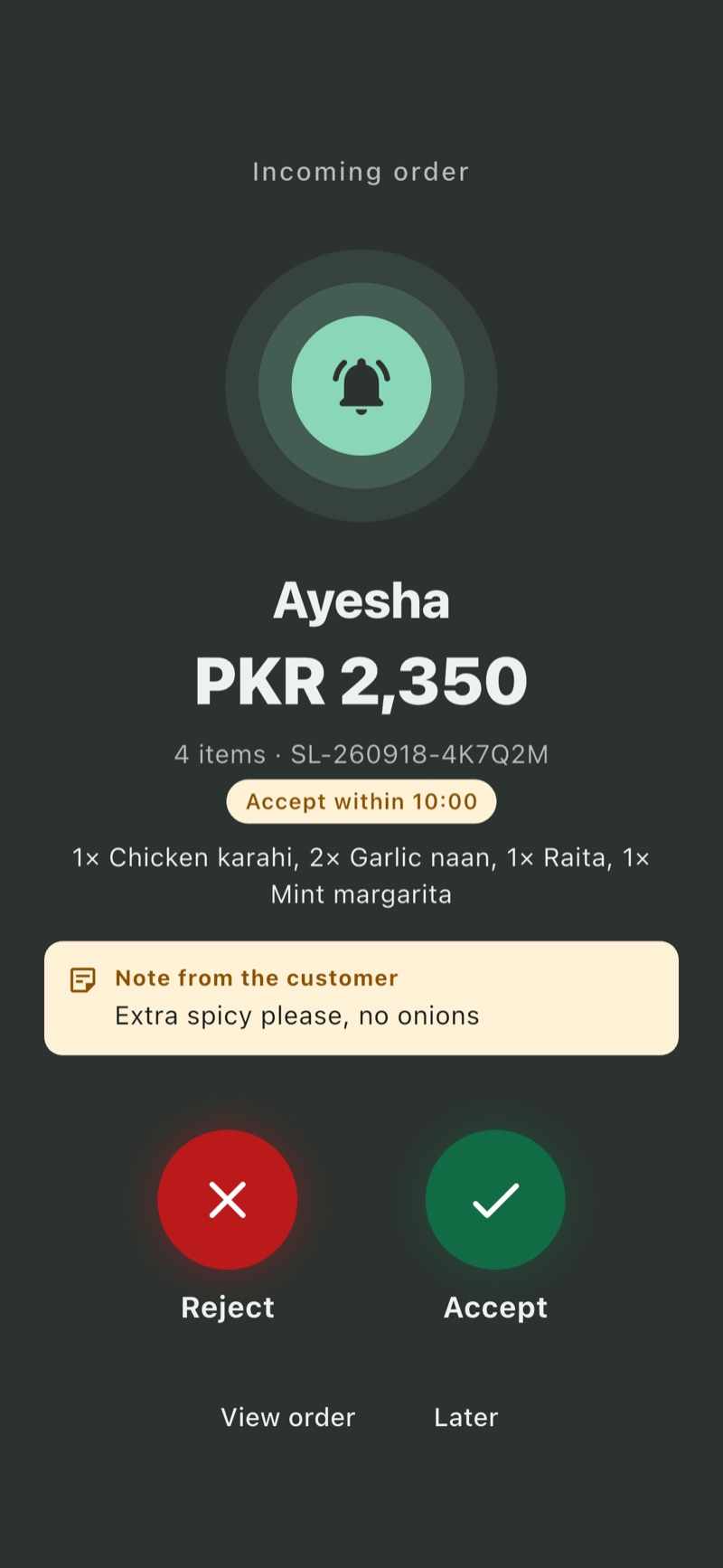
When a customer orders, your phone rings full screen, like a call, for up to 2 minutes, even when it's locked. Every order is cash on delivery.

1 · Accept the order

  1. Read the items and the Note from the customer, e.g. extra spicy, no onions.
  2. Tap Accept, then choose how long it takes to prepare: 5, 10, 15, 20, 30 or 45 min. The customer sees when it'll be ready.
  3. Can't make it? Tap Reject and give a reason. The customer is told.
Answer before the timer endsEach new order shows Accept within …. If nobody answers in time, the order expires and the customer is let down. Busy, or closing early? Tap Pause new orders on Home. Orders already placed carry on, and Resume orders brings new ones back.

2 · Cook, then hand it over

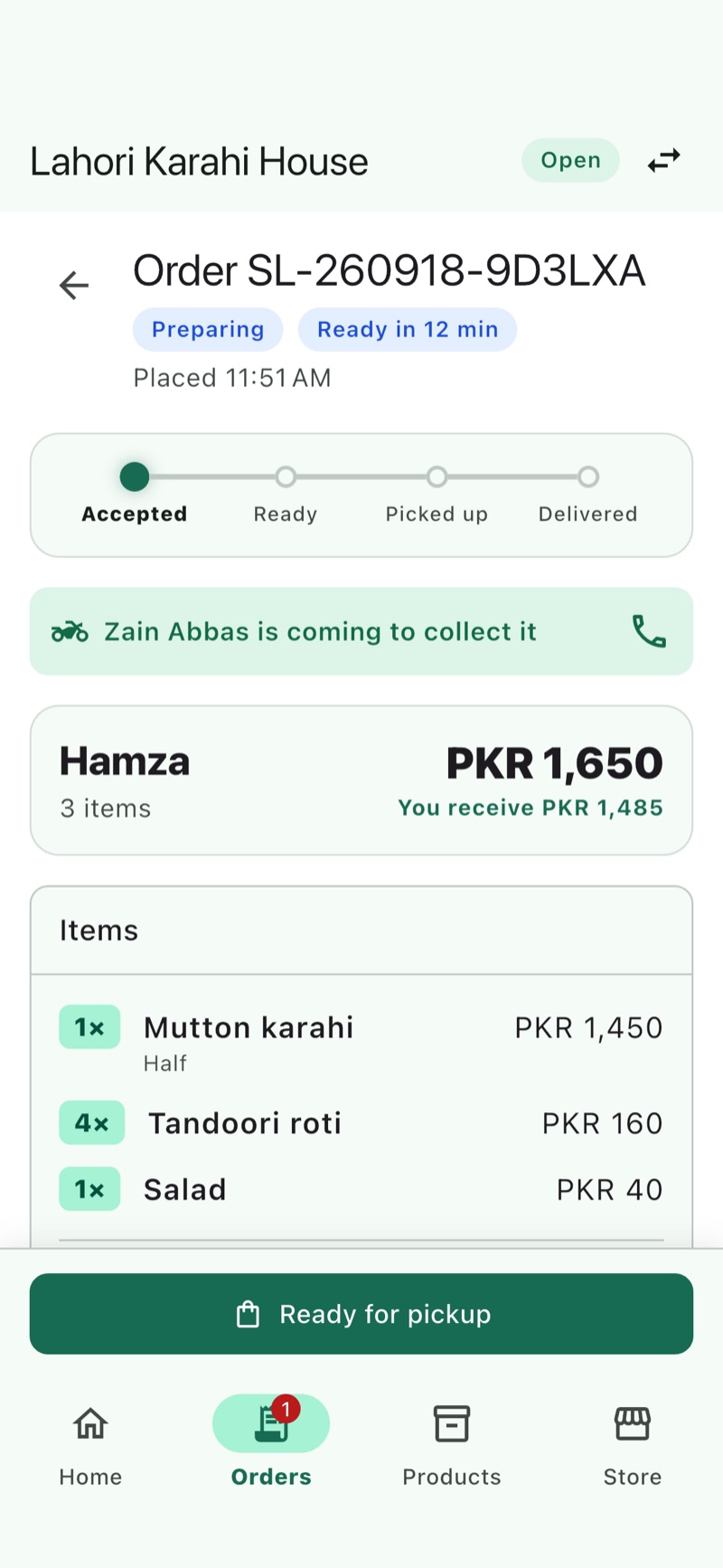
If SheenLink delivers: a SheenLink rider is found for you when you accept. You'll see e.g. Zain is coming to collect it, with a call button. When the food is packed, tap Ready for pickup and hand it to the rider. If no rider is found, open the order and tap Send to nearby riders, Send wider or Pick a rider.

If you deliver yourself: when your delivery boy leaves, tap Sent out. The customer is told it's on its way.

3 · Finish the order

Your own delivery: when the customer has the food and paid the cash, tap Delivered → Yes, delivered. If the customer didn't take it, tap Couldn't deliver and give the reason.

SheenLink rider: the rider marks it delivered. If a delivery fails, the rider brings the food back. Tap Received back when it's with you, and its stock goes back on sale.

The Orders tab

Orders are sorted into New Preparing Ready On the way. Tap any order to open it. Finished orders are under History.

A new order ringing
An order being prepared, with the rider on the way
SheenLink Store guide6
SheenLink Store guideStep 6 of 7
6
Money

Earnings & paying SheenLink

کمائی اور ادائیگی

SheenLink earns a commission on the items of each delivered order. Your commission rate is shown at the top of Earnings. Open it from Home → Earnings and payouts.

When a SheenLink rider delivers

  1. The rider collects the cash from the customer.
  2. The rider may hand you your share. Home then shows Cash from riders to confirm.
  3. Check the money and confirm only what you received. SheenLink leaves it out of what it pays you.
  4. Anything still owed to you is paid in a settlement. You'll see it under Settlements.

When you deliver yourself

  1. Your delivery boy collects the cash. You keep the money and the delivery fee.
  2. You owe SheenLink its commission on those orders.
  3. Pay it from Earnings → Pay SheenLink (steps below).
  4. SheenLink confirms once the money is in.

How to pay SheenLink

  1. Tap Pay SheenLink. You'll see You owe SheenLink and the amount.
  2. Under Send it to one of these, send the money to one of SheenLink's accounts with your bank or mobile wallet. You can also pay cash by hand to the SheenLink team.
  3. Under Then tell SheenLink, choose Where did you send it?: the account you used, or Cash, by hand.
  4. Enter the Transaction ID from the message your bank or wallet sent you. For cash, add a Note, e.g. who you handed it to.
  5. Tap I've paid PKR …. You'll see Sent. SheenLink confirms it once the money is in.
Pay on time to keep taking ordersIf you owe SheenLink more than the limit, new orders pause until you pay. They reopen as soon as you've sent it. The app warns you before that happens.
Pay SheenLink
The commission on orders you delivered yourself.
You owe SheenLink
PKR 2,340
Send it to one of these
Bank / wallet account details
Then tell SheenLink
Where did you send it?
Wallet accountCash, by hand
Transaction ID0123456789
Note (optional) 
I've paid PKR 2,340
Drawing of the payment screen

On Earnings you can also see Where the money went, Sales by day, every Delivered order and its payout, and your Settlements. Change the period to see a different week or month.

SheenLink Store guide7
SheenLink Store guideStep 7 of 7
7
Good habits

Daily checklist, problems & help

روزانہ کی فہرست اور مدد

Every day

If something goes wrong

ProblemWhat to do
The phone doesn't ringStore tab → check Ring for new orders is on. In the phone's settings, allow notifications for SheenLink Store and turn the volume up. Still silent? Call SheenLink.
No orders are comingCheck Home says Taking orders, not paused. Check your opening hours and that your dishes are On sale. If you owe SheenLink, pay it (Step 6).
"Your store is under review"Normal for a new store. We'll email you when it's approved. Add your menu meanwhile.
"Can't reach SheenLink"The phone has no internet. The app keeps trying. Check Wi-Fi or mobile data.
No rider foundOpen the order → Send to nearby riders or Send wider. Still nobody? Call SheenLink.
Customer didn't take the orderOwn delivery: tap Couldn't deliver and give the reason. SheenLink warns customers who don't take orders, and blocks them if it keeps happening.
A dish shows "Hidden by SheenLink"Open it to see the reason, then contact SheenLink.
Wrong address or phone on the storeContact SheenLink. Store details can't be changed in the app.
Forgot your passwordOn the sign-in screen tap Forgot password? and enter the code we email you.

Your SheenLink contact

Your store name Login email SheenLink contact name Phone / WhatsApp

You can also tap Call support or Email support on the Store tab. Never share your password with anyone. SheenLink staff will never ask for it.

SheenLink · sheenlink.com8